 CADian
Support
As evidenced by over 30 years of development history, trust-worthy Korean CAD, CADian!

|
Utility Archive
·
2026.02.11
CADian Lisps Download & Install Guide
|
|---|
|
Hi, This is CADian. We have prepared 400+ Lisp programs to aid your CAD experience, free of charge! Full List of all CADian Lisps : [Full CADian Lisp List] Here’s how you can install these Lisp programs : For CADian Pro 2025 & 2026 Users :
1/ Exit any running CADian program 2/ Download the attached file :
3/ Extract the downloaded file 4/ Run the installer file : CADian Utility - Installer.exe 5/ Once the installation is complete, launch CADian 6/ Utility programs will load automatically, adding a new menu to your interface. ===================================================== For CADian Classic & CADian Pro 2024 (and older) Users :
1/ Exit any running CADian program 2/ Download & Extract the attached file :
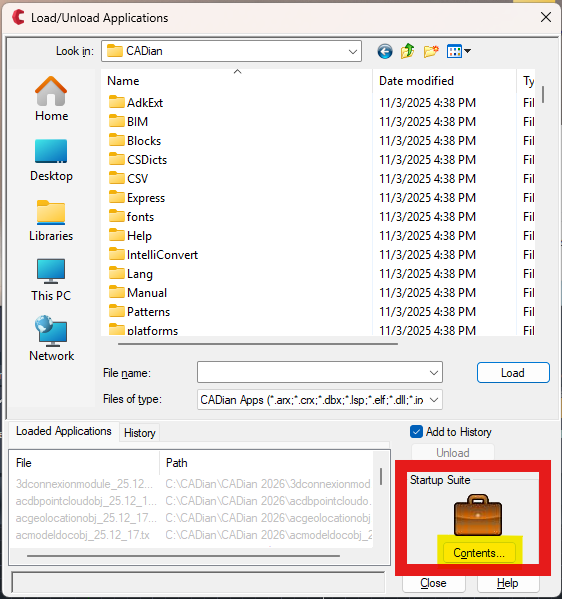
3/ Copy all extracted files into [C:\cadian] folder. 4/ Launch CADian Pro or Classic 5/ Type [ap] (Appload) in the command line and press Enter 6/ Click [Contents] in Startup Suite (marked in Red in image below)
7/ Utility programs will load automatically, adding a new menu to your interface.
===================================================== [Contents] in Startup Suite
|



Address : 1009, 115, Gasan digital 2-ro, Geumcheon-gu, Seoul, Republic of Korea (08505)
CEO : Seung Hoon Park Business Registration Number : 105-81-74484
Sales : partner@cadian.com
Support : help@cadian.com
Tel : +82 2-323-0286
Fax : +82 2-2107-3286